1.1.Building a universal TabBar component for high level navigation.
Published:
By Misael Cázares
[ 1.Design Systems ]
This is the first in a series of articles where we'll design, architect, and implement a universal TabBar component built for high-level navigation across web and native applications.
The goal for this first part is simple: a component that's consistent across platforms, easy to reuse, and flexible enough to be fully customized. We'll get there through advanced composition patterns, Tamagui's style system, and the core primitives from React Native and React Native Web.
With that in mind, let's look at our use cases and set expectations for what this component needs to handle in a real web and mobile application.
To see a live version of the demo application for this series, click here: Photo App Demo.
Overview
A TabBar lets people navigate between the top-level sections of an app. It helps users understand what kind of content the app offers and move through it without losing context. Any top-level navigation component needs to serve these core functions:
*
Entry point signaling - Communicates the app's core value propositions at a glance. The sections you choose implicitly say "these are the things this app does."
*
Current location - Tells users where they are in the app at all times.
*
Destination switching - Shows what's available at the top level, giving users a persistent mental map of the app.
*
Global accessibility - Always reachable regardless of how deep the user is in a nested flow, giving users a reliable way back no matter how deep they've navigated.
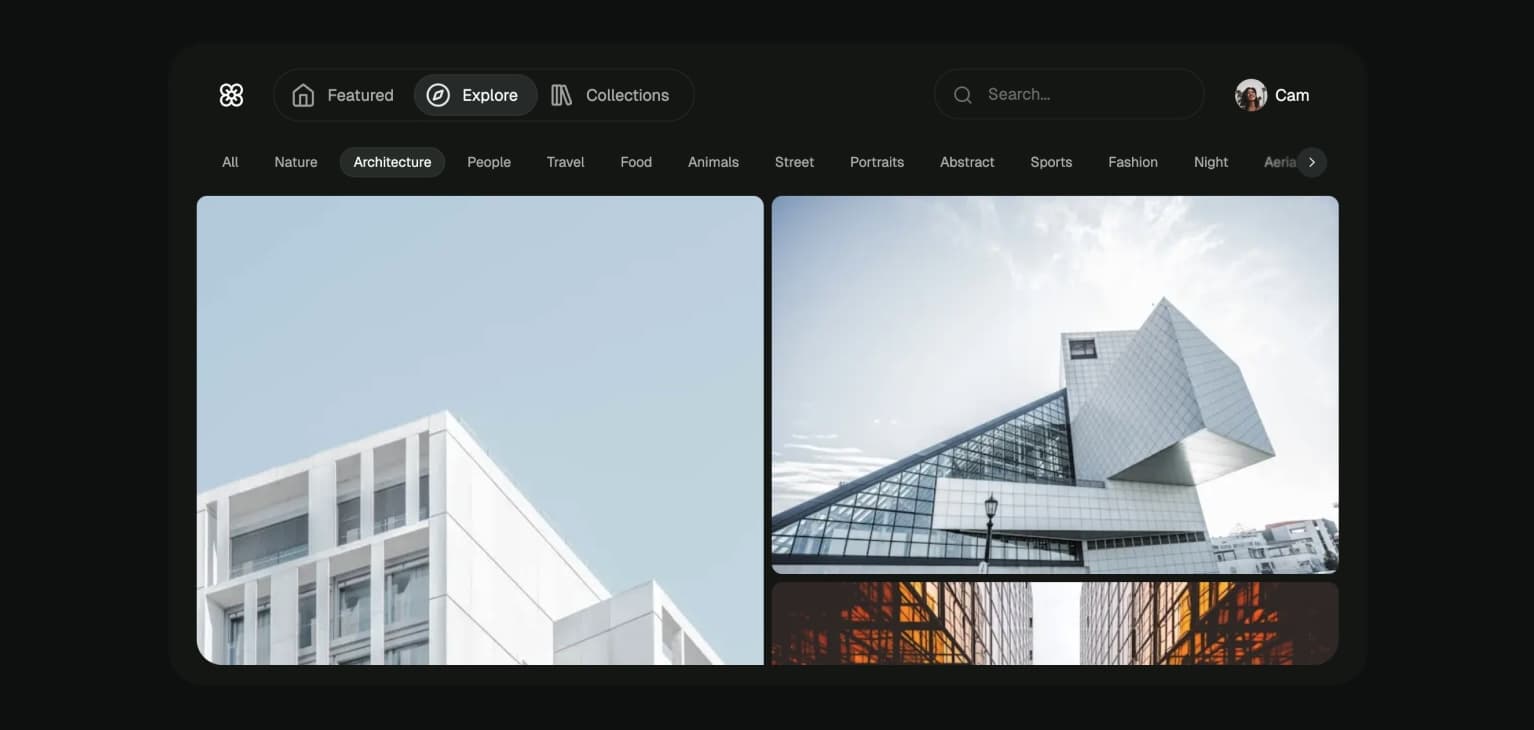
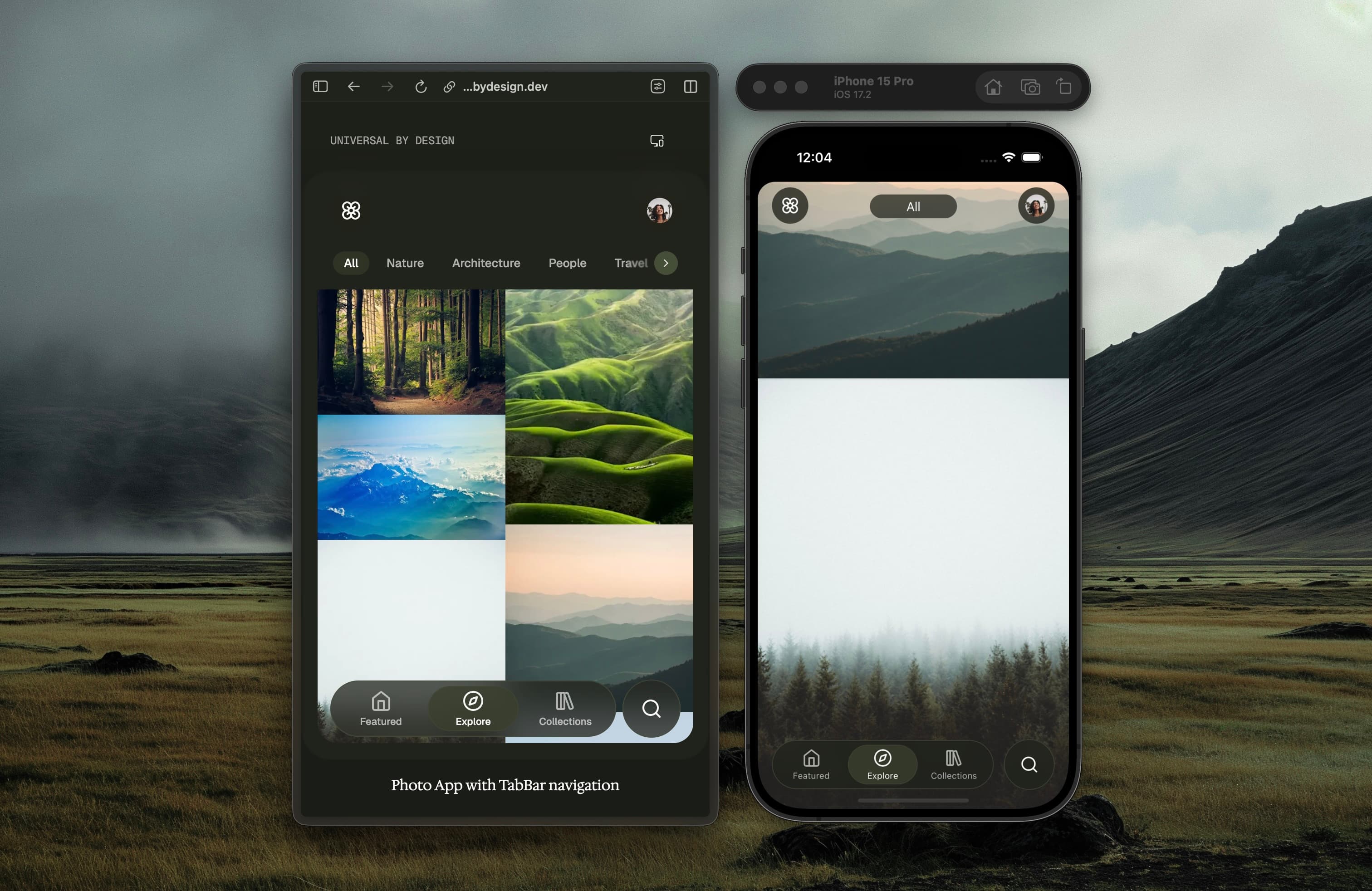
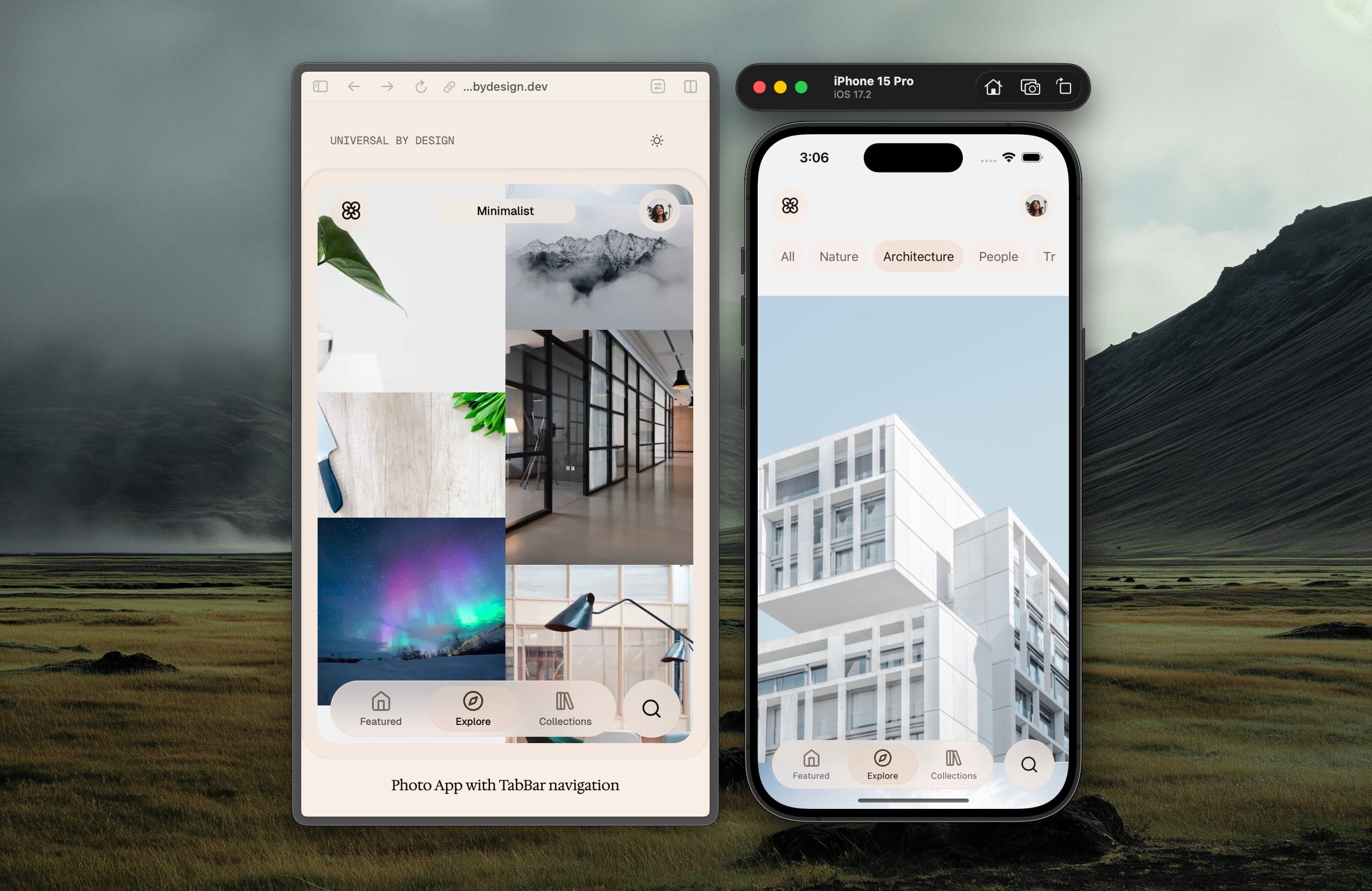
Looking at the screenshots above, we can see all four of these principles in action: a navigation component that's globally accessible, reflects the active state of the current location, preserves context as users move around, and surfaces the main sections of the app to hint at the content it provides.
Let’s now list the specific requirements we have observed.
The Requirements
At this point we have a pretty good picture of the features and constraints our component needs to support:
*
Layout and positioning — The component needs to handle top-level navigation for both mobile and desktop. This directly shapes how we render the TabBar list and item components: on mobile we're working within tight horizontal constraints, while on desktop we want to take full advantage of the available space.
*
Routing support — Our component shouldn't care about which routing tool the app uses. We need to support multiple frameworks — Next.js, Expo Router, and others — without compromising our design and UX guidelines. That includes features like prefetching and native browser navigation on web.
*
Controlled and uncontrolled state — Users can land on any section of the app from an external link, a push notification, or a deep link. We need full control over the component's active state to handle these cases gracefully.
*
Form factors — The Explore section introduces a second navigation pattern: a chip-style bar for browsing categories. It's more minimal than the main TabBar, which is a good signal that most of our styling and structural elements should be optional. Advanced composition patterns will give us that flexibility.
*
Theming — We need to support multiple color schemes, so the theming system has to be dynamic and available at runtime to support color scheme changes.
*
Accessibility — This one deserves its own chapter. We'll do a deep dive on building accessible tab interfaces in the next part of the series.
The Anatomy
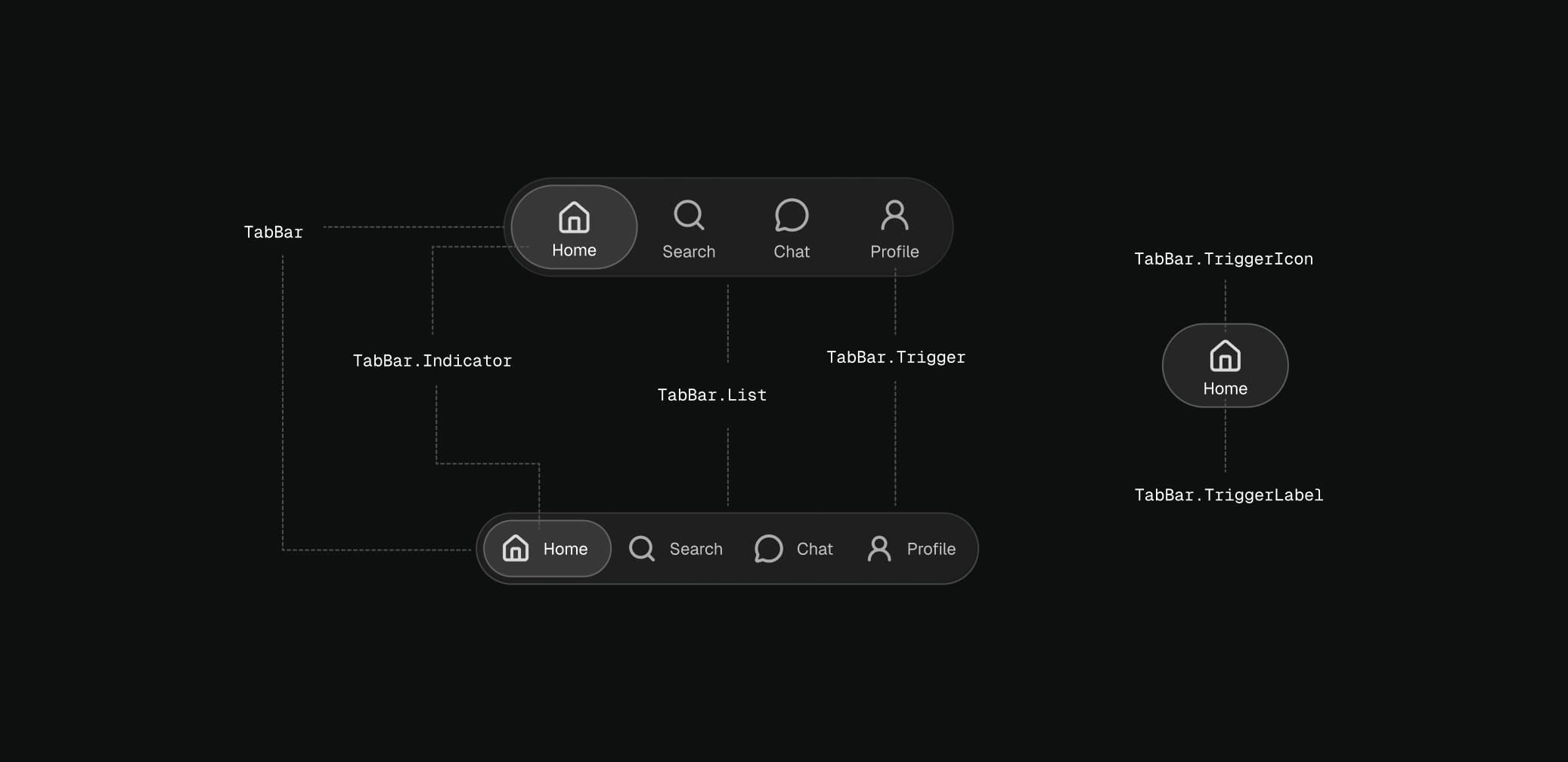
This visual deconstruction of the component gives us a high level overview of the set of primitives we need to build:
*
TabBar — The root component. Owns the active value, exposes controlled and uncontrolled state, and provides context to every descendant.
*
TabBarList — The container that lays out the triggers. Defines the bar's shape, padding, and orientation.
*
TabBarTrigger — An interactive item representing a single tab. Defines the content layout from our variants.
*
TabBarTriggerIcon — Optional visual representation of the label and content. Adapts to the active state.
*
TabBarTriggerLabel — Optional text affordance to name the sections. Handles typography and adapts to the active state alongside the icon.
*
TabBarIndicator — A visual indicator that highlights the active trigger. It's shared across the list to allow tracking and animated transitions between state changes.
The API Design
Time to design and build our set of components. The requirements above push us toward a compound component API: the root owns state, and a set of named sub-components (List, Trigger, Indicator, TriggerIcon, TriggerLabel) read from it through context. This lets each consumer compose the bar they actually need. A full branded pill on desktop, a minimal chip bar inside Explore, or a router-aware version wired to next/link, without us shipping a dozen boolean props.
The root contract is small and familiar to anyone who has used a component library like Radix or Base UI:
type TabBarRootProps<V extends string> = XStackProps & {
  value?: V                        // controlled
  defaultValue?: V                 // uncontrolled
  onValueChange?: (value: V) => void
  stretch?: boolean                // fill the container vs. hug content
  layout?: 'stacked' | 'inline'    // vertical layout vs. horizontal layout for icon and label
  unstyled?: boolean               // strip the default rounded styles
}
A few choices worth calling out:
*
Generic value type.
valueis generic (V extends string) so consumers get literal-union autocompletion for their routes and the dispatch is type-safe end to end. So the change event handler gets same type safety and inference as the value.*
Controlled and uncontrolled. Provides consumers with flexibility to have control on the state. The root uses a small
useControlledStatehook that prefersvaluewhen provided and otherwise manages internal state initialized fromdefaultValue. Deep links, push notifications, and router-driven state all become the same controlled case.*
layoutinstead of two components (vertical vs horizontal). Stacked (mobile bottom bar) and inline (desktop chips) share most of their behavior. A variant is simpler than a parallel component tree. At root prevents inconsistencies across triggers.*
unstyled. The Explore chip bar lives inside a surface that already has its own background and border. Rather than fighting the default rounded styles with overrides,unstyledstrips it cleanly.
A typical implementation ends up looking like this:
<TabBar.Root value={active} onValueChange={setActive} layout="inline">
  <TabBar.List scrollable>
    <TabBar.ActiveIndicator />
    <TabBar.HoverIndicator />
    <TabBar.Trigger value="home" asChild>
      <StyledLink href="/">
        <TabBar.TriggerIcon><Home /></TabBar.TriggerIcon>
        <TabBar.TriggerLabel>Home</TabBar.TriggerLabel>
      </StyledLink>
    </TabBar.Trigger>
    {/* ...more triggers */}
  </TabBar.List>
</TabBar.Root>
asChild is the one that keeps us router-agnostic: the trigger merges its behavior (onPress, hover, ref, active variant) onto whatever element you pass in; Next.js Link, an Expo Router Link, an <a>, anything. The component never assumes an specific routing framework.
The Implementation
For our implementation we are gonna be using Tamagui's component library and design system tools, since we are targeting both native and web in the same codebase, which Tamagui is designed for. But the same design and principles apply to any other component and styling libraries. You can checkout Tamagui docs here to find more about how it works and explore all the set of features it provides for building modern universal applications.
The root and state split with context
The root's only job is to own state and expose it. We split that state across three contexts instead of one, because they change at very different rates and we don't want a hover event re-rendering every trigger in the bar for example.
// TabBarContext         — { activeItem, stretch, layout, unstyled }, changes rarely
// TabBarDispatchContext — setActiveItem, stable reference
// TabBarIndicatorContext — layout registry to track triggers layout + active/hovered state, updates constantly
The root wires them up and renders a styled XStack frame:
function TabBar<V extends string>({ value, defaultValue, onValueChange, ...rest }: TabBarRootProps<V>) {
  const [active, setActive] = useControlledState({ value, defaultValue, onChange: onValueChange })
  const ctx = useMemo(() => ({ activeItem: active, stretch, layout, unstyled }), [active, stretch, layout, unstyled])

  return (
    <TabBarContext.Provider value={ctx}>
      <TabBarDispatchContext.Provider value={setActive}>
        <TabBarIndicatorProvider>
          <TabBarFrame {...rest}>{children}</TabBarFrame>
        </TabBarIndicatorProvider>
      </TabBarDispatchContext.Provider>
    </TabBarContext.Provider>
  )
}
Splitting dispatch from value is a small trick to optimize re-renders on the triggers: triggers that only need to set the active item subscribe to TabBarDispatchContext and never re-render when the active item changes, unless their are the ones being set as active.
The trigger and asChild
The trigger has two responsibilities: dispatch its value on press, and read activeItem to drive its active styling variant. Everything else, rendering an <a>, a Link, a plain View, should be the consumer's call.
The default path is a styled Tamagui's View component:
<TabBarTriggerFrame {...merged} group="trigger">{children}</TabBarTriggerFrame>It includes the default styles for the layout and unstyled variants. These variants are passed to triggers from the root component, using the TabBarTriggerStyledContext in the styled components.
const FrameStyles = {
  context: TabBarTriggerStyledContext,
  containerType: 'normal',
  {/* ...styles */}
  variants: {
    layout: {
      stacked: {
        {/* ...styles */}
        flexDirection: 'column',
      },
      inline: {
        {/* ...styles */}
        flexDirection: 'row',
      },
    },
    unstyled: {
      false: { borderRadius: PILL_RADIUS },
      true: {},
    },
  } as const,
  defaultVariants: {
    layout: 'stacked',
    unstyled: false,
  },
} as const

const Frame = styled(
  View,
  {
    ...FrameStyles,
  },
  {
    acceptsClassName: true,
  }
)

const TabBarTriggerFrame = Frame.styleable((props, ref) => <Frame ref={ref} {...props} />)
The asChild path clones the only child and merges trigger props onto it:
if (asChild) {
  const child = Children.only(children)
  const merged = mergeProps(mergeProps({ ref, ...ownProps }, rest), childProps)
  return cloneElement(child, { ...merged, group: 'trigger' })
}
mergeProps composes onPress, onHoverIn, onHoverOut, and ref so the consumer's handlers still run; user values win for everything else. To style a non-Tamagui component like Next.js Link, we expose createTabBarTriggerFrame(Link), a one-liner that wraps it in styled(...) with the trigger's variants so the link itself carries the layout and variant styles.
Measure triggers into a tiny store
The rover indicator needs to know where each trigger is. We can't use CSS because (a) we also render on native, and (b) the indicator animates across trigger bounds, which requires absolute positions relative to the list.
Each trigger wraps its render in a TriggerMeasurer that:
- Captures a ref to the DOM/native node.
- On layout and on every resize (
ResizeObserveron web,measureLayouton native), measures its bounds relative to the list's ref. - Calls
registry.register(value, layout)with the result.
The registry itself is an external store, not React state, because updates happen on every resize and we want fine-grained subscriptions:
const createLayoutStore = () => {
  const map = new Map<string, TriggerLayout>()
  const listeners = new Map<string, Set<Listener>>()
  return {
    get: (k) => map.get(k),
    set: (k, layout) => { /* bail if unchanged */ map.set(k, layout); notify(k) },
    subscribe: (k, listener) => { /* per-key subscribe */ },
  }
}
Consumers read through useSyncExternalStore, scoped to a single key:
const useTriggerLayout = (value: string | undefined) => {
  const { subscribe, getLayout } = useTabBarRegistry()
  return useSyncExternalStore(
    (l) => value ? subscribe(value, l) : () => {},
    () => value ? getLayout(value) : undefined,
  )
}
The payoff: the active indicator re-renders only when the active trigger's bounds change; the hover indicator only when the hovered trigger's bounds change. Triggers themselves never re-render from layout updates. This is a huge performance win, and one the main reason we are using useSyncExternalStore here.
The indicator, positioning and animation
With the registry in place, the indicator is almost trivial. It reads the layout for the active (or hovered) value and renders an absolutely-positioned View with a Tamagui transition on top/left/width/height:
const IndicatorFrame = ({ layout, borderWidth, ...rest }) => {
  if (!layout) return null
  const bw = resolveBorderWidth(borderWidth)
  return (
    <View
      position="absolute"
      top={layout.y + bw} left={layout.x + bw}
      width={layout.width - bw * 2} height={layout.height - bw * 2}
      borderWidth={borderWidth} borderRadius={PILL_RADIUS}
      transition="quick" animateOnly={['top', 'left', 'width', 'height']}
      {...rest}
    />
  )
}
Two small but crucial details:
*
Inset by the border width. If you place a 1px border at the measured bounds, it sits around the trigger and looks 2px fat. We shrink the frame by the border width so the border sits inside the trigger footprint instead.
resolveBorderWidthhandles Tamagui size tokens viagetTokenValue.*
animateOnly. Without it, Tamagui will transition any animatable prop (opacity, color, transform) when the active item changes, producing subtle flashes. Pinning the list keeps the animation crisp.
ActiveIndicator and HoverIndicator are thin wrappers that pick the right value from context. The hover variant returns null when hovered === active, so we don't double-stack.
The scrollable list with edge affordances
On desktop, an inline chip bar will overflow when it has more items than fit. On web we render the list as a plain scrollable XStack (overflow="scroll") so we get a real DOM ref to the viewport, then drive canScrollLeft / canScrollRight from a ResizeObserver plus a native scroll listener. Each edge renders a LinearGradient fade plus a chevron button that scrolls by ~80% of the viewport width:
const scrollBy = (direction: -1 | 1) => {
  const el = webViewportRef.current
  if (!el) return
  const step = el.clientWidth * SCROLL_STEP_RATIO * direction
  el.scrollTo({ left: el.scrollLeft + step, behavior: 'smooth' })
}
We tried wrapping React Native's ScrollView and reading onLayout / onContentSizeChange / onScroll, but those callbacks didn't fire reliably on the production-extracted CSS build — the edge buttons never appeared. Going through the DOM directly on web sidesteps that, and native still uses ScrollView for proper touch handling. The edge affordances are web-only by design (native has its own scroll affordances), so we gate the whole thing with isWeb.
Wrapping up
You can see the complete code for the production-ready implementation, here:
import { useCallback, useEffect, useRef, useState } from 'react'

type UseControlledStateOptions<T> = {
  value?: T
  defaultValue?: T
  onChange?: (value: T) => void
}

/**
 * A hook to manage both controlled and uncontrolled state.
 * Follows the React pattern used by production libraries like Radix UI and React Aria.
 *
 * @param options - Configuration object
 * @param options.value - Controlled value (if provided, component is controlled)
 * @param options.defaultValue - Initial value for uncontrolled mode
 * @param options.onChange - Callback fired when value changes
 *
 * @returns [value, setValue] tuple where setValue works for both modes
 *
 * @example
 * // Controlled
 * const [value, setValue] = useControlledState({ value: externalValue, onChange: setExternalValue });
 *
 * @example
 * // Uncontrolled
 * const [value, setValue] = useControlledState({ defaultValue: "initial" });
 */
export function useControlledState<T>({
  value: controlledValue,
  defaultValue,
  onChange,
}: UseControlledStateOptions<T>): [T | undefined, (value: T | ((prev: T | undefined) => T)) => void] {
  const [uncontrolledValue, setUncontrolledValue] = useState<T | undefined>(defaultValue)

  // Determine if component is controlled
  const isControlled = controlledValue !== undefined
  const value = isControlled ? controlledValue : uncontrolledValue

  // Dev warning for switching between controlled/uncontrolled
  const wasControlled = useRef(isControlled)
  useEffect(() => {
    if (process.env.NODE_ENV !== 'production') {
      if (wasControlled.current !== isControlled) {
        console.error(
          `Warning: A component is changing from ${wasControlled.current ? 'controlled' : 'uncontrolled'} to ${isControlled ? 'controlled' : 'uncontrolled'}. ` +
          `Components should not switch from controlled to uncontrolled (or vice versa). ` +
          `Decide between using a controlled or uncontrolled component for the lifetime of the component.`
        )
      }
    }
    wasControlled.current = isControlled
  }, [isControlled])

  const setValue = useCallback(
    (nextValue: T | ((prev: T | undefined) => T)) => {
      const resolvedValue = typeof nextValue === 'function'
        ? (nextValue as (prev: T | undefined) => T)(value)
        : nextValue

      if (isControlled) {
        onChange?.(resolvedValue)
      } else {
        setUncontrolledValue(resolvedValue)
        onChange?.(resolvedValue)
      }
    },
    [isControlled, onChange, value]
  )

  return [value, setValue]
}
Live Demo
To see a live version in action of the demo application for this series, click here: Photo App Demo.